
Last Updated: October 29, 2026
Lag in Battlegrounds Mobile India (BGMI) can make aiming difficult, delay your shots, and interrupt gameplay during important fights. Whether you experience sudden FPS drops, high ping, screen stuttering, or freezing, identifying the cause is the first step toward fixing it. Fortunately, you can often improve BGMI performance by adjusting graphics settings, stabilising your internet connection, managing background apps, and preventing your phone from overheating. Here are 10 practical ways to fix lag in BGMI on Android and iPhone.
1. Identify Whether You Have Network Lag or FPS Drops
Before changing your settings, determine what is causing the problem.
- High ping: Enemies teleport, shots register late, and your character moves unpredictably. This usually indicates network latency or packet loss.
- Low FPS: Camera movements appear choppy, animations stutter, or the screen freezes briefly. This often indicates hardware limitations, overheating, or excessive graphics settings.
- Sudden crashes: BGMI closes unexpectedly or freezes completely. Possible causes include insufficient memory, corrupted game files, software bugs, or compatibility issues.
Check the in-game network indicator and observe when the problem occurs. If ping rises during gameplay, investigate your connection. If the game stutters while ping remains stable, focus on device performance.
2. Use the Best BGMI Graphics Settings for Stable FPS
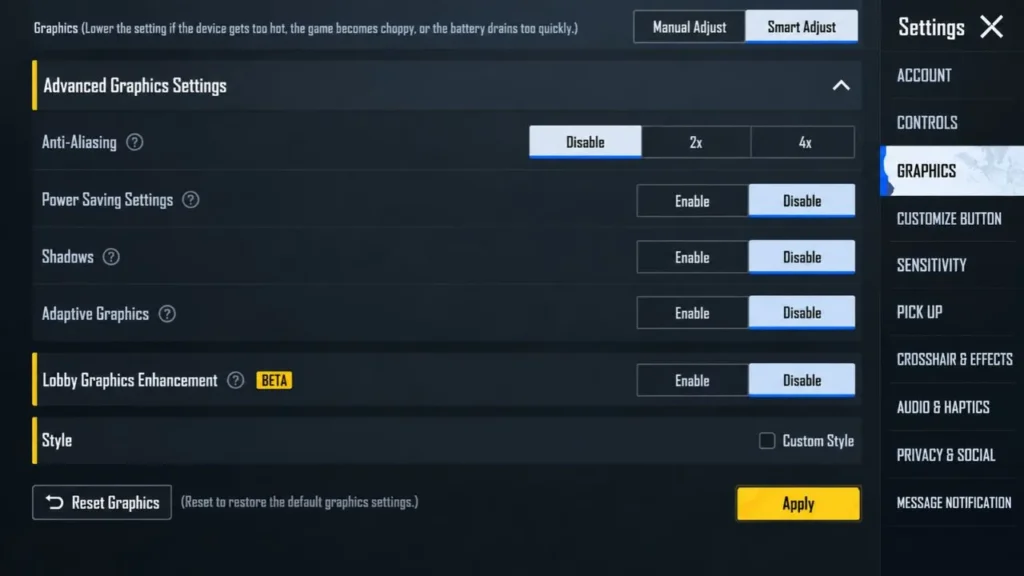
High graphics settings can overload your phone, especially during intense fights. Reducing visual effects can help maintain a more consistent frame rate.
Open BGMI, navigate to Settings > Graphics & Audio, and try these settings:
| Setting | Recommended option |
| Graphics | Smooth |
| Frame Rate | Highest stable option supported |
| Anti-Aliasing | Off, if available |
| Shadows | Off or Low, if available |
| Auto-adjust graphics | Test both settings if performance fluctuates |
The available options depend on your device and game version. Prioritise stable FPS over maximum graphics quality. If your phone supports 90 FPS, select it only when the option appears in the game’s graphics settings.
You can also check your phone’s display settings to ensure its refresh rate is configured appropriately. A 120Hz display does not automatically mean BGMI will run at 120 FPS.
3. Improve Your Internet Connection to Reduce Ping
A weak or unstable connection can cause delayed actions, lag spikes, and disconnections even when your phone runs the game smoothly.
Try these steps:
- Switch between Wi-Fi and mobile data to identify which connection performs better.
- If using Wi-Fi, move closer to the router and try the 5GHz band when available and within range.
- Pause downloads, cloud backups, and video streaming on other devices.
- Enable a stable 4G or 5G connection where mobile signal strength is good.
- Restart your router if other devices also experience connectivity problems.
Lower ping is generally better, but connection stability matters too. A connection fluctuating between low and high ping can feel worse than one maintaining a slightly higher, consistent ping.
Avoid assuming that a VPN will automatically reduce latency. It may increase ping, and any improvement depends on routing and server conditions.
4. Close Background Apps Before Playing
Background applications can consume RAM, CPU resources, network bandwidth, and battery power. Before launching BGMI, close unnecessary applications such as streaming services, large downloads, BGMI UC top-up websites, and resource-intensive social apps. Disable unnecessary screen recording or live-streaming features if they affect performance. You can also enable your phone’s gaming mode, such as Game Space on supported Realme devices, Game Turbo on Xiaomi devices, or the equivalent feature on OnePlus and Samsung phones. These features may help manage notifications and allocate resources more effectively. However, results vary by device, so compare performance with your normal settings.
5. Clear BGMI Cache and Free Up Storage
Insufficient free storage can affect overall device performance, particularly when the phone is already running several applications.
To clear the cache on Android:
- Open Settings on your phone.
- Navigate to Apps or App Management.
- Select BGMI.
- Open Storage usage.
- Tap Clear cache, if available.
Menu names vary by manufacturer and software version. Avoid selecting Clear data unless you understand that it may remove local settings or require you to sign in again. Delete unnecessary downloads, duplicate videos, and unused applications to free up space. Restart your phone after cleaning it if performance remains inconsistent.
6. Prevent Your Phone From Overheating
Overheating is a common cause of FPS drops during extended gaming sessions. When a phone becomes too hot, its thermal management system may reduce processor and graphics performance to control temperatures.
To reduce heat:
- Avoid playing while charging, particularly during demanding matches.
- Remove a thick phone case if it traps heat.
- Play in a cool, well-ventilated environment.
- Reduce graphics settings and FPS if the phone becomes excessively hot.
- Take breaks between long gaming sessions.
Avoid placing your phone in a refrigerator or exposing it to extreme temperature changes. Let it cool naturally before resuming gameplay. If BGMI runs smoothly initially but becomes choppy after 20–30 minutes, thermal throttling may be contributing to the problem.
7. Update BGMI and Your Phone’s Software
Outdated software can introduce compatibility issues, while game updates may contain performance improvements or new bugs. Check the Google Play Store for BGMI updates and install stable system updates recommended for your phone. If lag began immediately after a particular update, check official announcements and relevant device-community discussions before making major changes. For example, some OnePlus users have reported model-specific performance problems after updates. However, community workarounds should not be treated as universal fixes. Avoid installing unofficial APKs, modified game files, or third-party FPS unlockers. These can introduce security risks, cause instability, or violate game rules.
8. Enable Your Phone’s Supported Performance Settings
Some smartphones include performance modes that can help maintain gaming responsiveness. Check your device settings for options such as Performance Mode, Game Mode, or a high-refresh-rate display setting. Enable them only if they are supported and do not cause excessive heating. For 90 FPS, BGMI’s official 90 FPS setup guide explains the relevant in-game and device settings. Avoid blindly changing Android Developer Options, disabling system services, enabling 4X MSAA, or restricting background processes. These adjustments are not guaranteed to improve BGMI performance and may increase resource usage or disrupt other applications.
9. Repair BGMI if the Game Keeps Freezing
If lag persists after adjusting your connection and device settings, the game may have corrupted or incomplete files. BGMI provides a Repair option on its login screen. If available, use the relevant repair function and follow the on-screen instructions. Restart the game and test whether the issue is resolved. If repair does not work, reinstall BGMI as a last resort. Before doing so, ensure your account is linked to a supported login method and that you know your credentials. Guest accounts may lose progress if you log out or uninstall the game.nFor persistent connection errors, consult the official BGMI troubleshooting guide.
10. Check Whether Your Phone Can Maintain the Required FPS
Not every phone can deliver high frame rates consistently. Processor performance, GPU capability, RAM availability, cooling design, and BGMI’s device-specific support all influence gameplay. If your phone struggles even with Smooth graphics, reduce the frame-rate setting to a level it can sustain. This may provide a more consistent experience than selecting the highest available option. If performance remains poor across multiple games and applications, investigate broader device issues rather than assuming BGMI is solely responsible.
Conclusion
Fixing lag in BGMI starts with identifying whether the problem comes from network latency, FPS drops, overheating, or corrupted game files. Begin with Smooth graphics, a stable internet connection, fewer background applications, and sensible temperature management. Test each change individually to determine what improves performance on your device. If the problem continues, use BGMI’s Repair option and official support resources before attempting a complete reinstallation.
Frequently Asked Questions
Your phone may be overheating, running out of available memory, or struggling with graphics settings. Check FPS stability and device temperature alongside ping.
Use a stable Wi-Fi or mobile-data connection, improve signal strength, pause downloads, and avoid network congestion. Changing connections can help identify the source of latency.
Smooth graphics with the highest consistently stable supported frame rate is a useful starting point. Reduce FPS if your phone overheats or experiences frequent drops.
An update may introduce compatibility issues, change performance requirements, or coincide with server problems. Check official announcements, update the game when a fix is available, and avoid unofficial modifications.

Aarav Sharma is a gaming writer and BGMI enthusiast contributing to BGMIGuide.com. His content focuses on Battlegrounds Mobile India (BGMI), including gameplay guides, weapon statistics, maps, character abilities, skins, updates, esports tournaments, gaming news, and tips to help players improve their gameplay.
With a strong interest in mobile gaming and competitive esports, Aarav aims to make gaming information easy to understand for both beginners and experienced players. His articles cover BGMI features, sensitivity settings, control layouts, in-game items, player IDs, tournament updates, and other topics relevant to the Indian gaming community.
As a freelance contributor associated with Outreachspot IT Solutions, Aarav contributes to digital publishing projects focused on informative, accessible, and reader-friendly content. Through BGMIGuide.com, he aims to help players stay informed about the game, explore useful resources, and keep up with developments in the BGMI community.
His editorial focus is on presenting gaming information clearly, checking relevant details against available sources, and updating guides when important game features or updates change.
Pingback: Best Sensitivity for BGMI: Camera, ADS, Gyroscope & No-Recoil Settings (2026)